Cortex — chat, document, execute
Cortex is the surface where the three things you do with Vancetope happen in one place: talk to an agent, work on a document, and run it. No jumping between a chat window, an editor and a terminal — they share one screen, one session, and the same live document underneath.
This tour uses the demo project orbit-app from the showcase. If you seeded
it (wb smoke showcase), you can follow along on your own instance.
Table of contents
- Getting there
- The three zones
- Talk about what’s open
- View or edit the source
- Every kind, one shell
- Run it
- Where to go next
Getting there
Cortex opens on a document, so you start in Documents — the project’s file
browser. Pick the project (orbit-app) in the left rail and you see its
top-level folders.
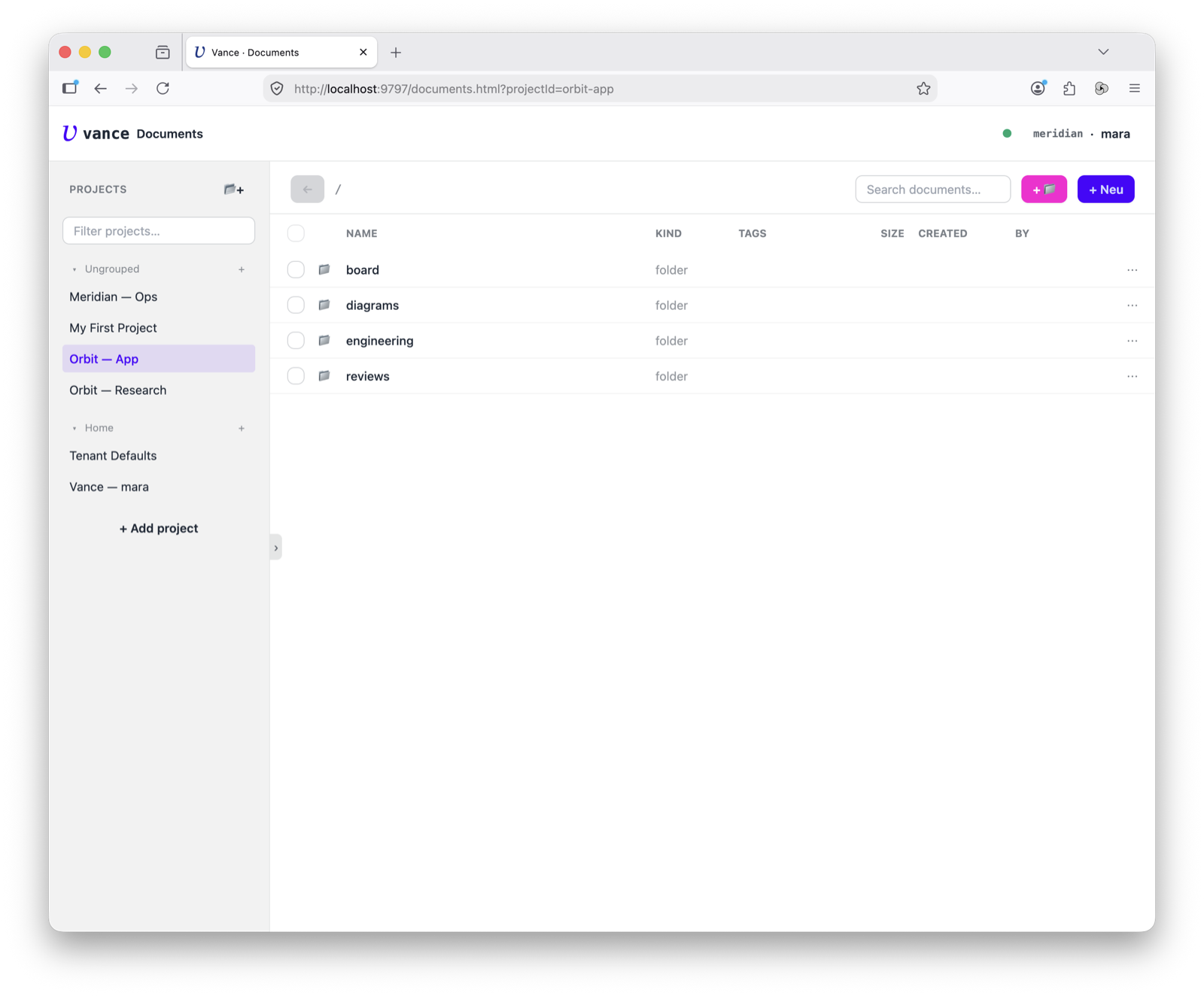
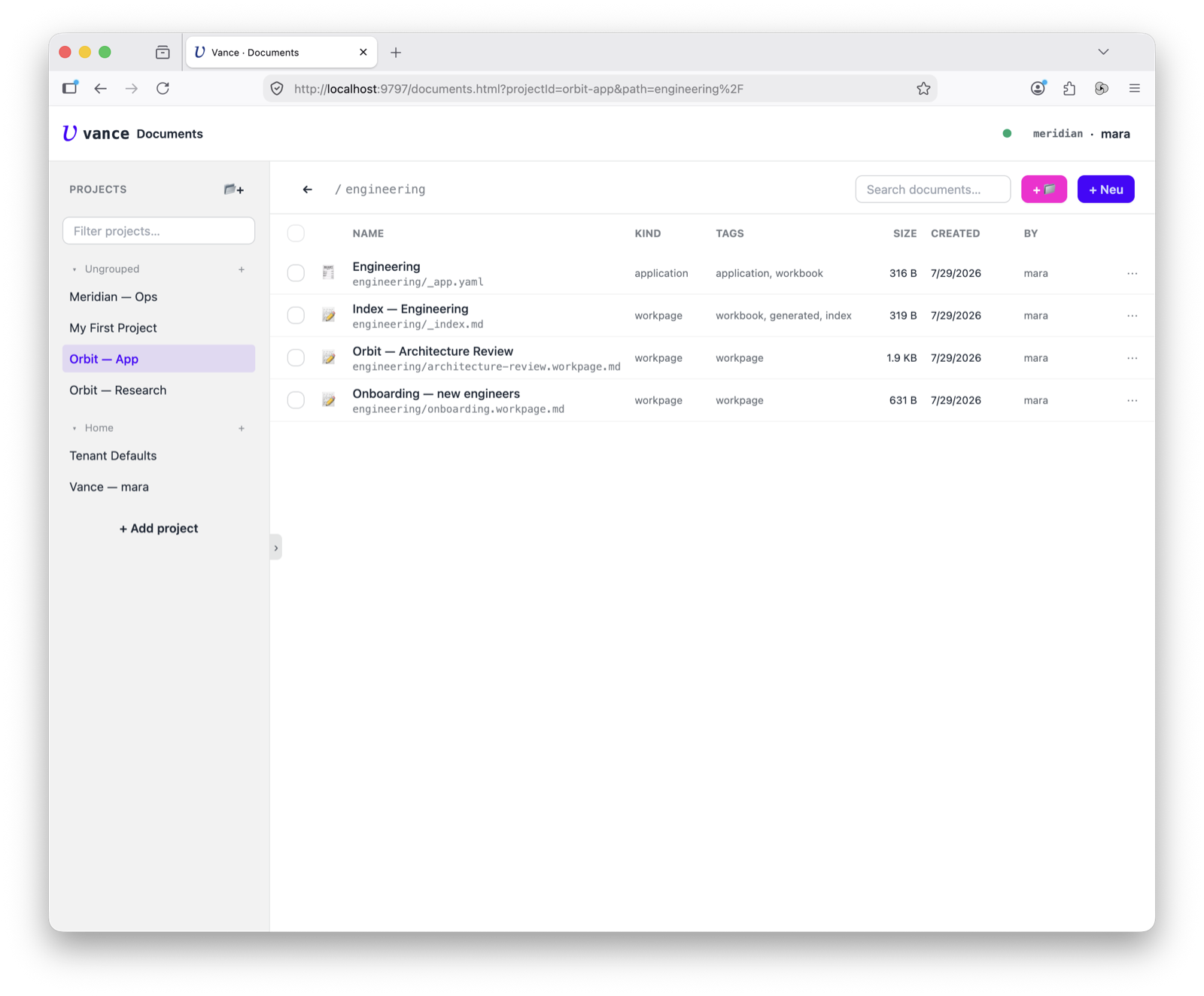
Drill into a folder to find the file you want to work on. Here, engineering/
holds the workbook — its app manifest, an index, and the workpages themselves.
Click a document and it opens in Cortex.
The three zones
Every Cortex screen has the same shape:
- Left — file tree. Every document in the project, the way Finder shows folders. Click one to open it in a tab.
- Middle — the document. Tabs across the top, the active document below. One shell renders every kind — a workpage, a canvas, a spreadsheet, a script — each with the right editor.
- Right — Chat / Help. The agent session on one tab; a context-sensitive
Help panel (changes per document kind) on the other. It collapses out of the
way — the
⟩handle on the edge brings it back.
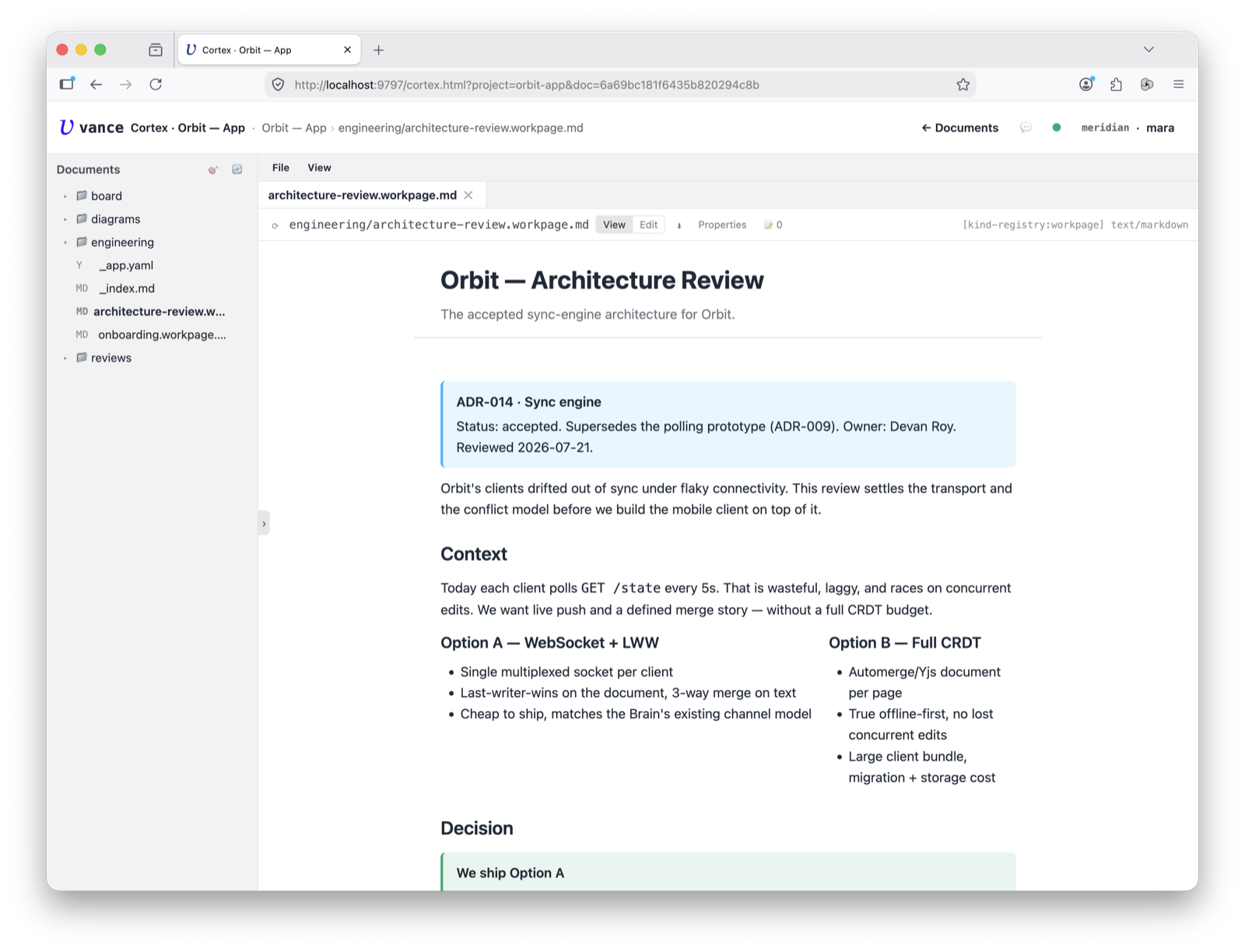
Here the architecture-review workpage is open in the middle, rendered as a
block editor — the ADR callout, the side-by-side options, the decision box.
The toolbar carries a View / Edit toggle, a Properties deep-link, and a
[kind-registry:workpage] pill telling you which editor bound to this kind. The
chat panel is collapsed in this shot; we open it next.
Talk about what’s open
Open the Chat panel on the right (the ⟨ handle, or the chat icon in the
top bar) and you have an agent session sitting next to the document. It isn’t a
generic assistant — it works against this file: ask it to explain a section,
tighten the wording, or add what’s missing.
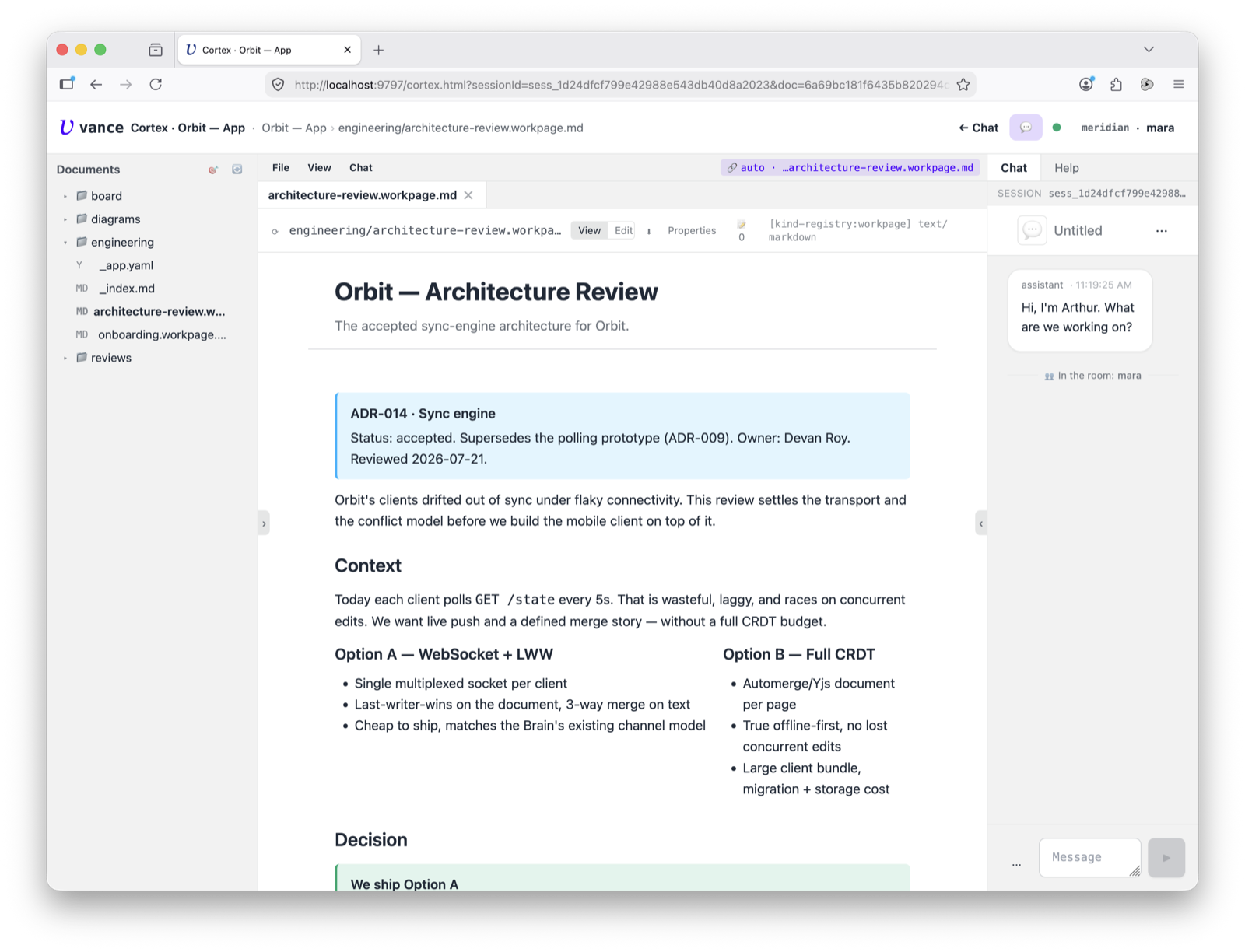
Document on the left, conversation on the right, one session. The chat panel
carries its own tab bar (Chat / Help) and a session picker, so you can
switch conversations without leaving the document.
View or edit the source
The View / Edit toggle in the toolbar flips between the rendered block editor
and the raw source. Everything is a document, so “edit” just means the plain
markdown underneath — frontmatter ($meta), the vance-callout and
vance-columns fences, the lot. Edit it here, or let the agent edit it; same file.
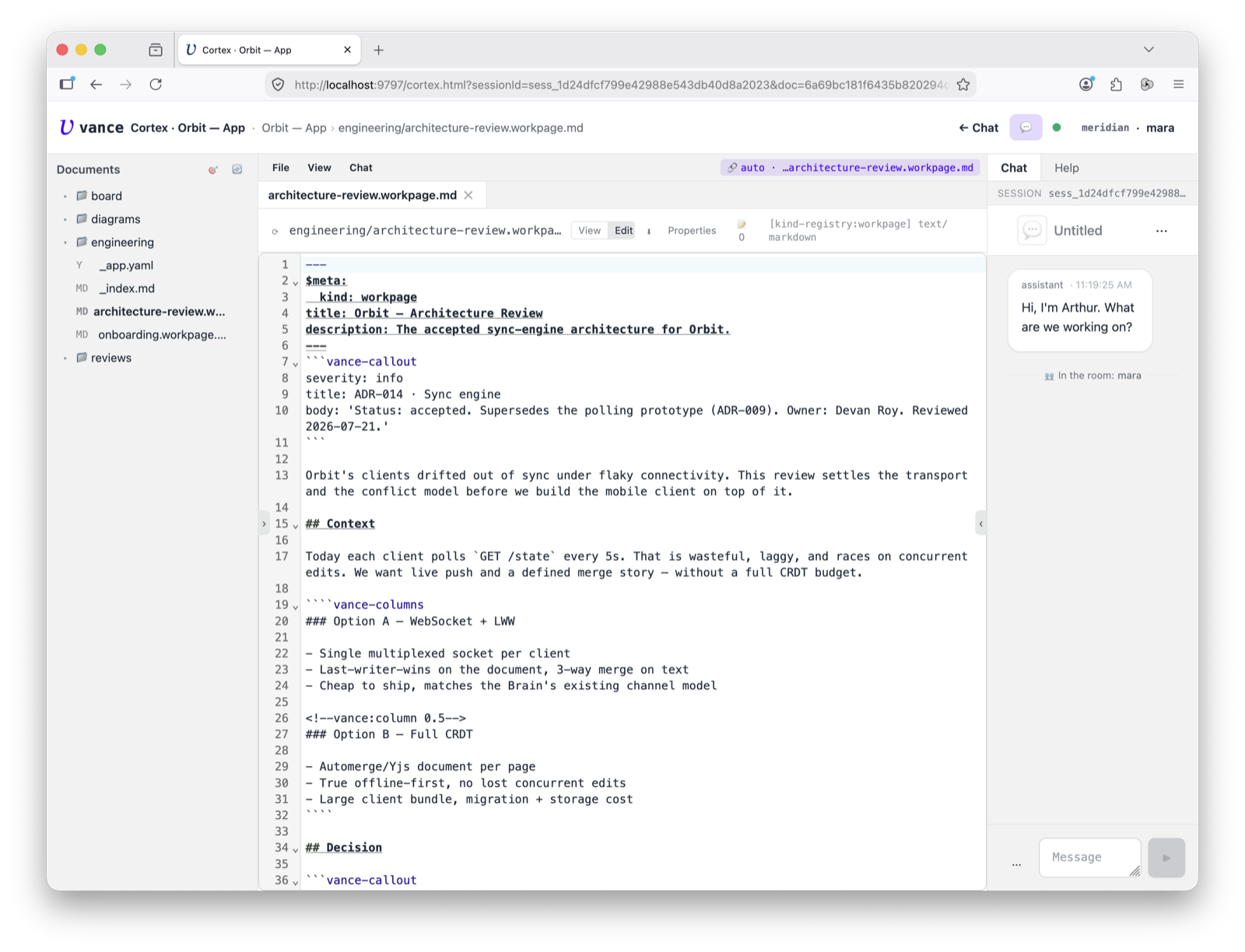
That’s the point of one surface: read it rendered, drop into the source when you need to, and keep the conversation open the whole time.
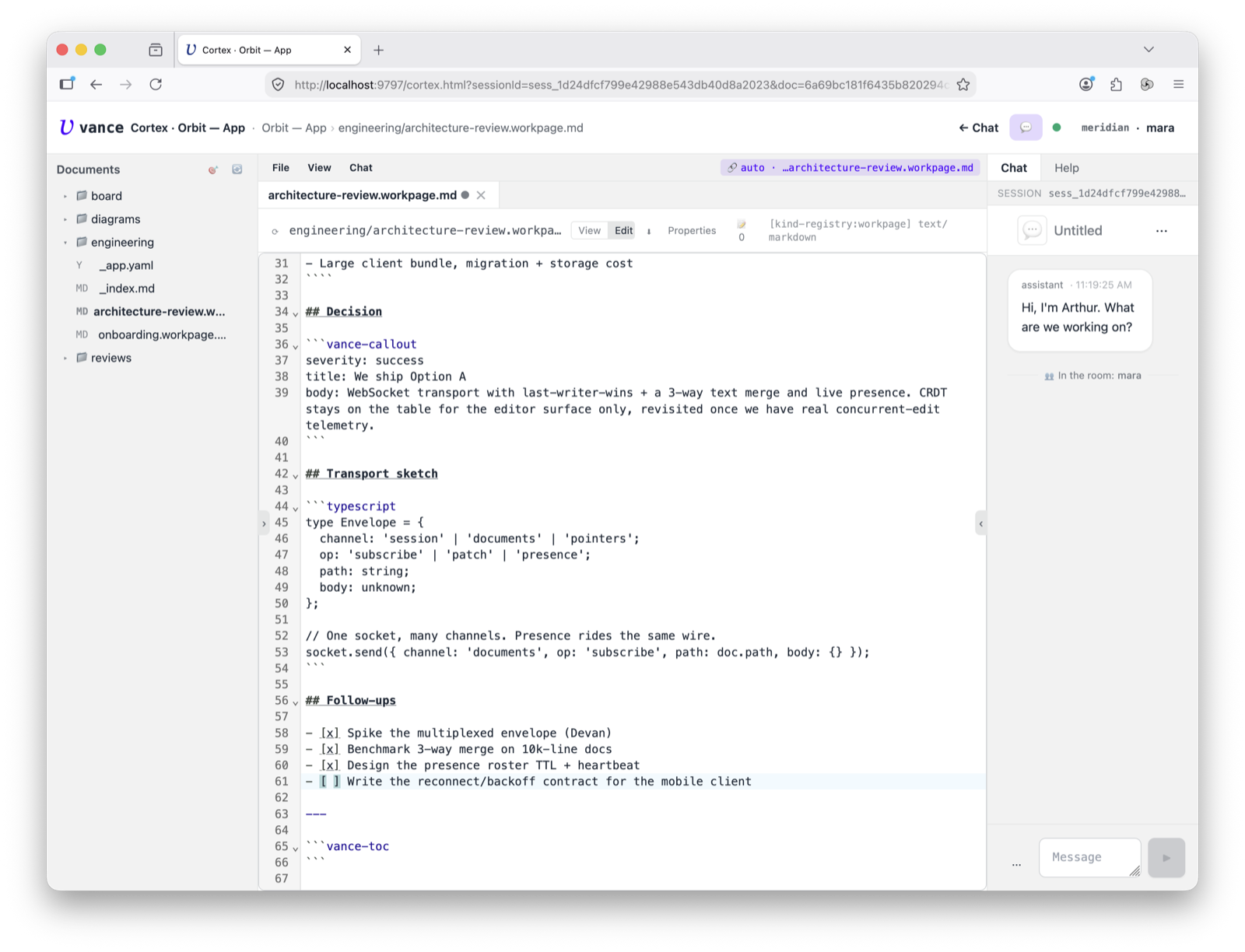
As you edit, the tab shows a dirty indicator — the ● next to the file name
— marking unsaved changes. Edits stream over the documents channel, so when the
agent (or another person) writes to the same file, it updates live, with
presence and a 3-way merge; you can be typing in it at the same moment.
Every kind, one shell
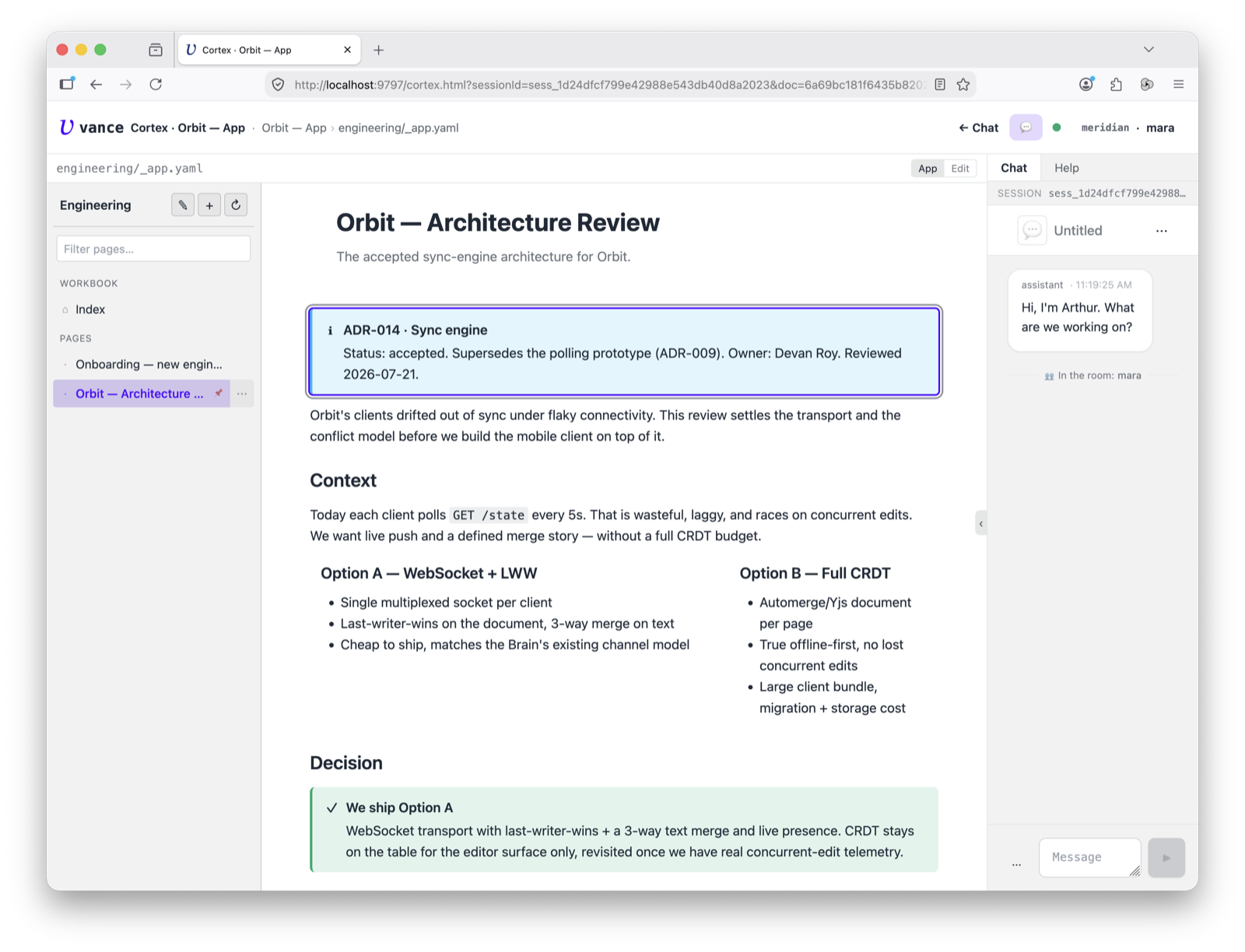
The middle pane re-skins itself to whatever the document is — a workpage is a
block editor, a canvas a node graph, a spreadsheet a grid. Push it further and
open an application: the Engineering workbook’s _app.yaml renders as the
whole app inside the same shell — its own page tree on the left, the page in
the middle, the chat still on the right. The toolbar toggle just becomes
App / Edit.
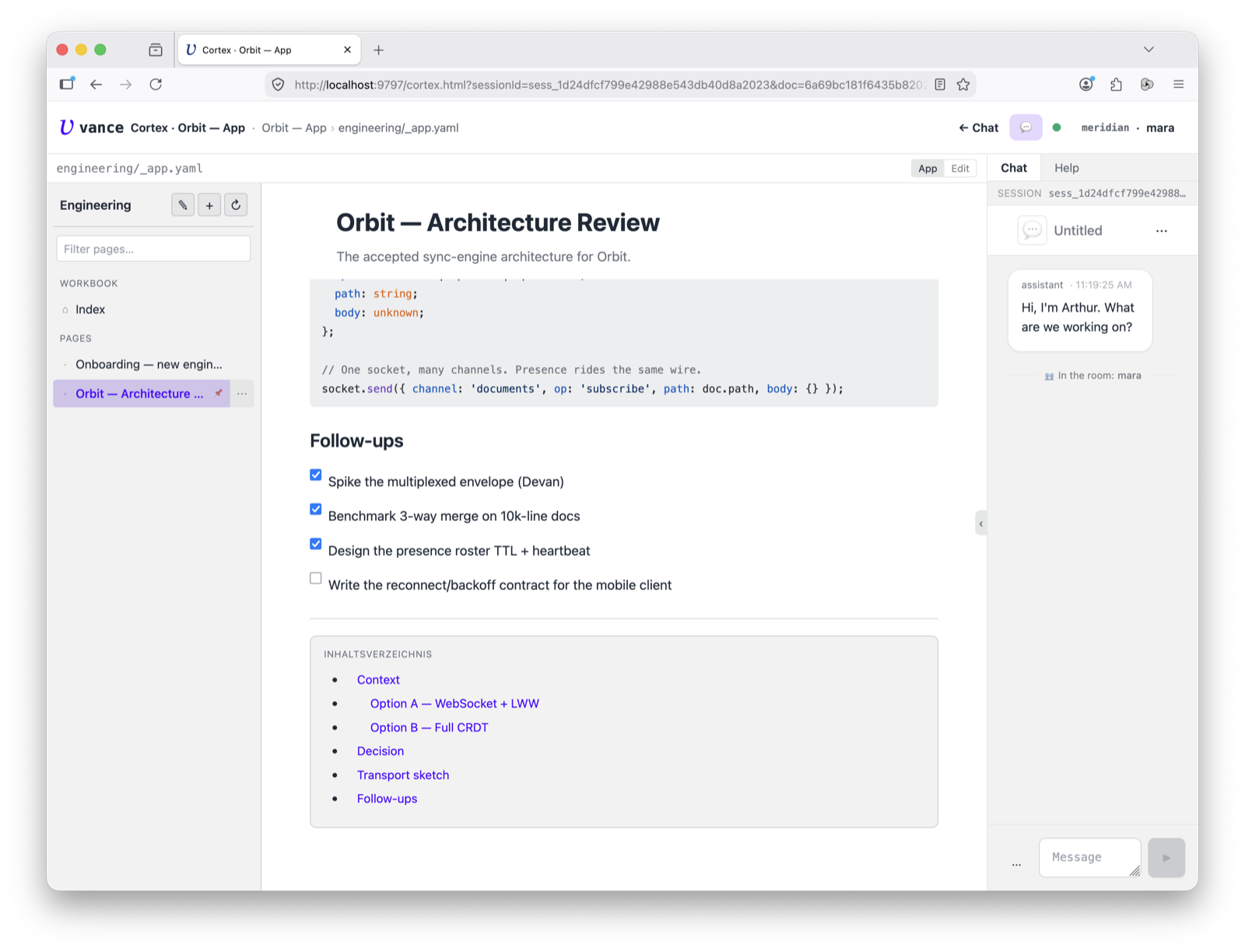
And the blocks are live, not a flat dump: callouts, side-by-side columns, syntax-highlighted code, checkable to-dos, an auto-generated table of contents — the whole workpage block inventory rendered inline.
Run it
Some documents are executable — a JavaScript or Python script, a compose block. Cortex gives them a Run button (plus Validate and Update) and shows the output inline. This is the “execute” third of the surface: author, run, read the result without leaving the page.
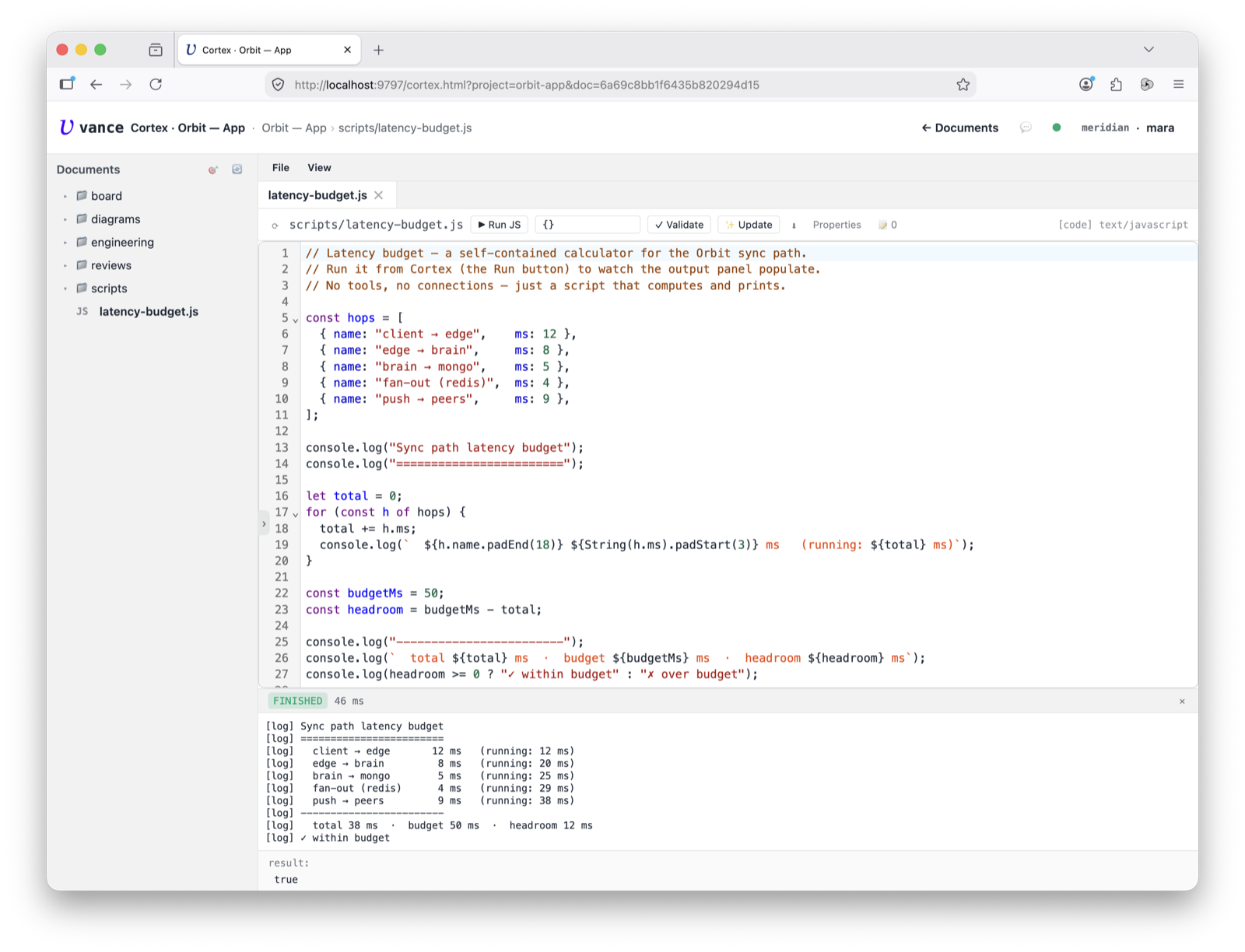
The console lines stream into the panel and the result is the value of the
script’s last expression — here true. (There’s no top-level return; the
last expression is the result.)
The script runs on the server, not in your browser. It executes in the Brain — with access to the project, its documents and its tools — and only the output is streamed back to this page. So
console.logand the result come from the server side, not from client-side JavaScript.
Where to go next
- The other surfaces have their own tours — see How-tos.
- What Cortex is and how it dispatches document kinds internally: Cortex spec.
- Haven’t got a running instance yet? Get started.